
Download DMG Canvas – Custom Disk Image Builder for macOS
Overview – Why DMG Canvas Stands Out in the macOS Toolbox
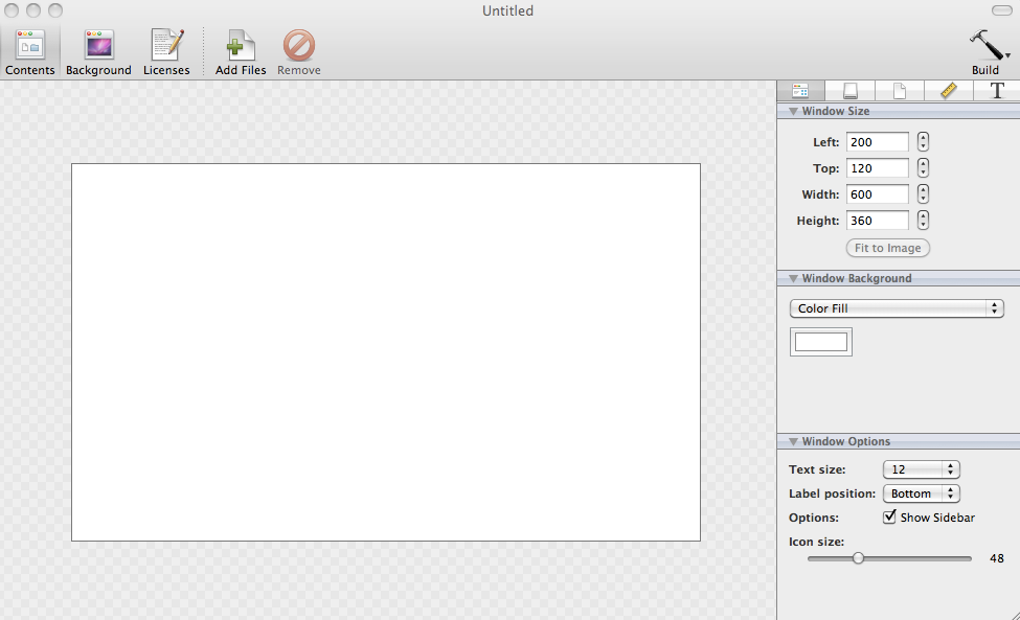
DMG Canvas is a purpose‑built macOS utility that lets developers and power users create polished, branded disk images without ever touching the command line. Traditional disk‑image creation often requires knowledge of hdiutil, terminal flags, and a fair amount of trial‑and‑error. DMG Canvas replaces that steep learning curve with a visual editor that behaves like a lightweight graphics layout program. You start by designing a template – adding a background image, positioning icons, setting a volume name, and even attaching a license agreement that appears the moment a user mounts the DMG. Once the template is saved, building a new version is as simple as clicking the “Build” button; the application automatically bundles the latest files, applies the chosen layout, and outputs a ready‑to‑distribute .dmg file.
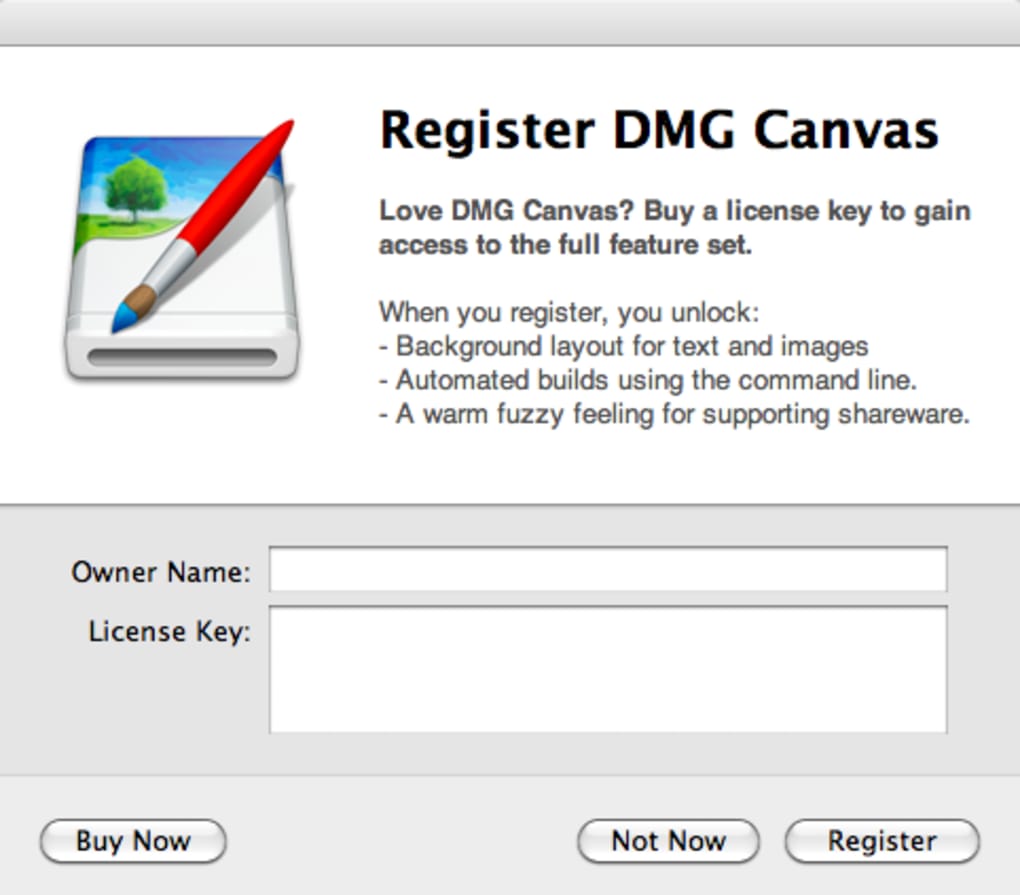
Beyond aesthetics, DMG Canvas streamlines the release workflow. For software teams that ship frequent updates, the repeatable template means you no longer need to recreate the visual presentation for each version. The free tier already includes everything most indie developers need: background placement, icon positioning, volume naming, and license handling. If you decide to upgrade, the paid registration unlocks advanced options such as custom text overlays, command‑line build integration, and batch processing of multiple documents. The tool also respects modern macOS security practices, creating signed disk images that pass Gatekeeper checks, which is crucial for maintaining user trust.
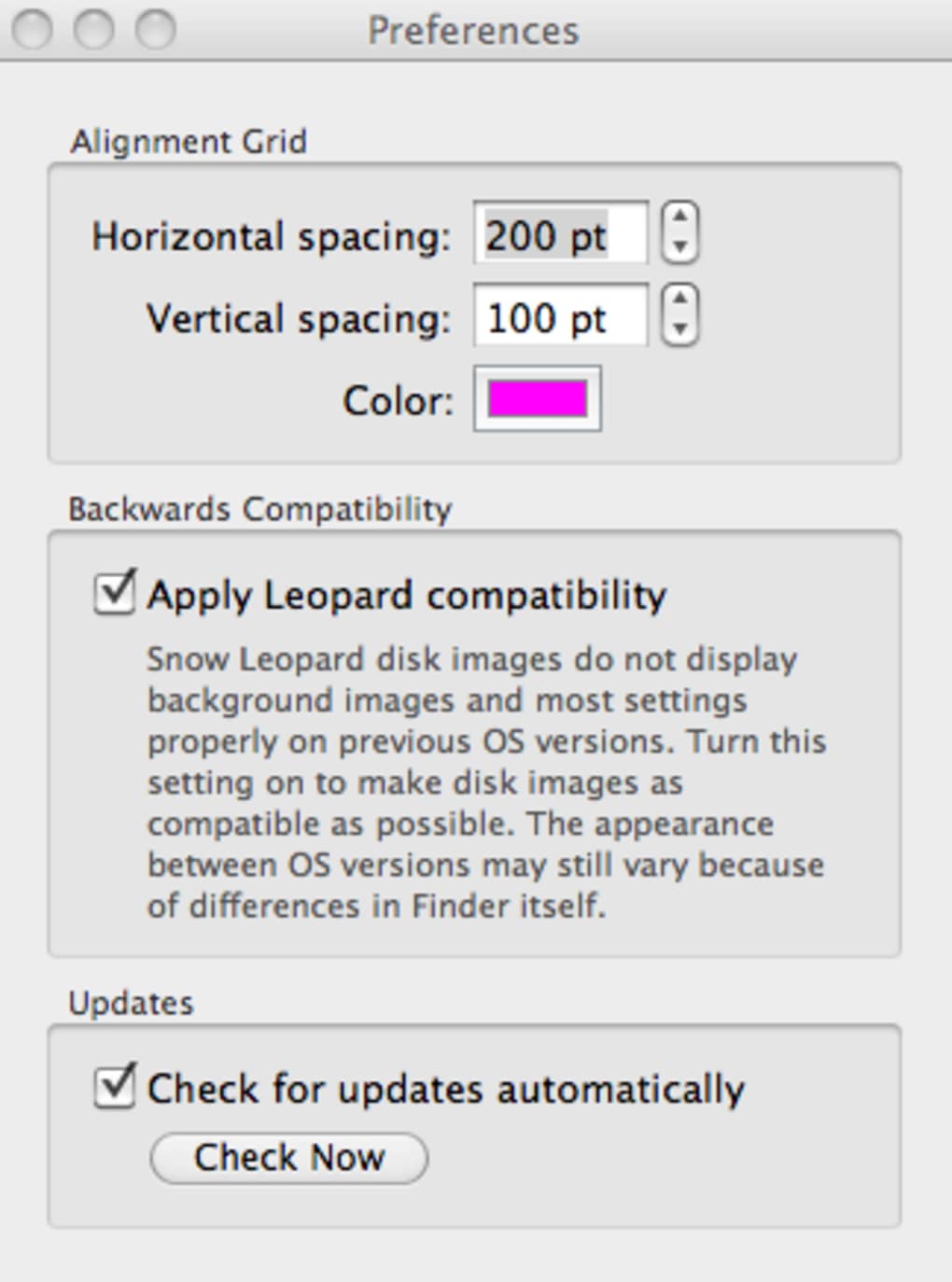
Since the last major update, DMG Canvas requires macOS 10.6 or later, removes legacy Leopard compatibility layers, and improves error reporting during builds. It now supports simultaneous builds of documents with distinct volume names, and the background image generation has been tweaked to avoid cropping on different Finder window sizes. In short, DMG Canvas offers a secure, intuitive, and time‑saving solution for anyone who wants their software distribution to look as professional as the product inside.
Key Features, Pros & Cons – What You Get with DMG Canvas
- Visual template editor with drag‑and‑drop icon placement.
- Customizable background images and volume icons.
- Built‑in license agreement window displayed on mount.
- One‑click build process that packages the latest files automatically.
- Support for multiple simultaneous builds (different volume names).
- Command‑line integration for automated CI pipelines (registered version).
- Automatic creation of 64‑pixel‑taller background to prevent cropping.
- Improved error handling and detailed build logs.
Pros
- Ease of use: No terminal knowledge required; the UI guides you step‑by‑step.
- Time‑saving: Re‑use templates for every release, reducing repetitive work.
- Professional look: Branded backgrounds and icons make your DMG feel like a finished product.
- Security‑ready: Generates signed images compatible with Gatekeeper.
- Free core features: Most developers never need to purchase a license.
Cons
- Only available for macOS; Windows or Linux users must rely on a Mac for builds.
- Advanced batch‑processing and command‑line features are locked behind the paid version.
- Limited to disk‑image creation; does not handle installer packages (.pkg).
- Interface, while functional, feels a bit dated compared to modern design tools.
Overall, the balance of free functionality and optional premium upgrades makes DMG Canvas a compelling choice for developers who prioritize a polished presentation without the overhead of scripting. The pros clearly outweigh the cons for most macOS‑centric software distribution scenarios.
Installation, Usage & Compatibility – Getting Started on macOS
To begin, download the DMG Canvas installer from the official website. The installer is a standard .dmg file that you open and drag the DMG Canvas app into your /Applications folder. Because the app is notarized by Apple, macOS will allow the installation without additional security prompts, though you may need to approve the app in System Preferences → Security & Privacy** if you encounter a “unidentified developer” warning. Once installed, launch DMG Canvas; the first launch may prompt you to grant access to your Documents folder so it can read the files you intend to bundle.
The workflow is straightforward: create a new document, set the desired volume name, choose a background image (PNG or JPEG), and drag your application bundle and supporting files onto the Finder‑style window displayed within the editor. You can adjust icon positions, add custom text fields (available in the registered version), and specify a license file that will appear automatically when the DMG is opened. When you’re satisfied, click the Build button. DMG Canvas will ask you where to save the output file, then generate a signed .dmg ready for distribution. If you need to build multiple versions (e.g., a beta and a stable release), simply duplicate the template, change the included files, and repeat the build process – each document maintains its own volume name to avoid conflicts.
Compatibility-wise, DMG Canvas runs on macOS 10.6 (Snow Leopard) and later, including the latest macOS Ventura releases. The application leverages native macOS APIs, so you won’t encounter the “Finder not needed” bug that plagued older versions. Because the tool is macOS‑only, you’ll need access to a Mac for any builds, but the output DMG files work on any Mac that meets the minimum system requirements of the bundled software. If you’re integrating DMG Canvas into an automated build pipeline, the registered version’s dmgcanvas command‑line tool lets you invoke builds from scripts, making it suitable for CI/CD environments.
Frequently Asked Questions & Final Thoughts
Do I need a paid license to create a basic DMG?
No. The free version of DMG Canvas provides all essential features needed to design and build a standard disk image, including background images, icon placement, and license agreement support.
Can I automate DMG creation with a script?
Yes, but only with the registered version. It includes a command‑line utility (dmgcanvas) that accepts parameters for background path, volume icon, and more, enabling integration with CI pipelines.
Is the generated DMG signed and Gatekeeper‑compatible?
DMG Canvas can create signed disk images if you provide a valid Developer ID certificate. This ensures the DMG passes Gatekeeper checks on end‑user machines.
What file formats are supported for the background image?
Both PNG and JPEG are fully supported. The application automatically scales the background to fit the Finder window while adding a 64‑pixel buffer to avoid cropping on different macOS versions.
Does DMG Canvas work on the latest macOS versions?
Yes. The current release requires macOS 10.6 or later and has been tested on macOS Monterey, Ventura, and the most recent beta builds.
Conclusion – Is DMG Canvas Worth Your Download?
For macOS developers who want a quick, reliable way to produce beautiful disk images, DMG Canvas hits the sweet spot between simplicity and professional output. The free tier already covers the majority of use‑cases, while the optional paid upgrade unlocks power‑user features without forcing you into the command line. Installation is a one‑click drag‑and‑drop, the interface is intuitive, and the generated DMGs are ready for distribution through any channel, including the Mac App Store (as a supplemental download). If you’re tired of hand‑crafting .dmg files or dealing with cryptic terminal commands, give DMG Canvas a try today.
Ready to upgrade your software delivery? Download DMG Canvas now and start building stunning, secure disk images in minutes.
DMG Canvas delivers on its promise of a visual, code‑free disk‑image creation workflow. The free version is robust enough for most indie projects, and the paid upgrade adds valuable automation capabilities. Minor UI quirks keep it from a perfect score, but overall it’s an essential tool for macOS software distribution.







